
How to Convert Videos to MP3 Online Safely and Free
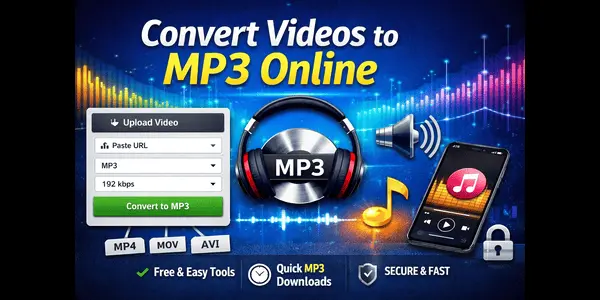
How to Convert Videos to MP3 Online is something many people need when a video contains audio they want to listen to later. You may find a helpful YouTube tutorial or a podcast uploaded as a video, but you only need the sound. In those cases, extracting audio makes more sense than saving the full video. With the right online tools, this process is simple, fast, and does not require installing any software. You only need a browser and a few clicks to turn video content into an MP3 file you can listen to anytime.
I have tested dozens of online converters to find the ones that actually work no sketchy ads, no malware risks, just clean MP3 files in seconds. This guide walks you through the entire process, from choosing the right tool to getting studio-quality audio output. You won’t need to install anything or create accounts. Just your browser and a few clicks.
What Are Online Video Converters?
Think of these tools as audio extractors that work in your browser. You upload a video file (or paste a link), and the tool strips out the audio track and saves it as an MP3. The whole process happens on remote servers, which means your computer does minimal work.
The beauty of browser-based converters is convenience. They work on any device Windows laptops, Macs, tablets, even your phone. No downloads, no installation hassles, no software cluttering your system.
Most people use them for:
- Saving music from videos for offline listening
- Converting lectures and webinars into audio for commuting
- Extracting podcast episodes uploaded as videos
- Creating audio versions of tutorials or interviews
The best part? The good ones are completely free for everyday use.
Step-by-Step: How to Convert Videos to MP3 Online
Here’s the basic workflow that applies to nearly every online converter:
Step 1: Choose Your Source
You can either upload a video file from your device or paste a URL from platforms like YouTube, Vimeo, or Facebook. Drag-and-drop usually works if the converter supports it.
Step 2: Select MP3 Format
Most tools default to MP3, but double-check. Some offer other formats like M4A or WAV—stick with MP3 for maximum compatibility.
Step 3: Pick Your Quality
This is where most people make mistakes. Higher bitrate means better sound but larger files. I’ll cover ideal settings in a moment.
Step 4: Convert and Download
Hit the convert button and wait. Depending on file size and server load, this takes anywhere from 5 seconds to 2 minutes. Once done, download your MP3.
| Step | What Happens | Pro Tip |
| Upload/paste link | Tool analyzes video | Use WiFi for large files |
| Select format | Output type set | Always choose MP3 for compatibility |
| Choose bitrate | Audio quality determined | 192 kbps balances quality and size |
| Download | MP3 saved to device | Check Downloads folder if it doesn’t auto-open |
Best Free Converters I have Actually Tested
I spent weeks testing popular converters. Here’s what I found:
Cloud Convert
- What it does well: Handles massive files (up to 1GB free) and processes them fast. I converted a 45-minute lecture (720MB) in under 90 seconds.
- The catch: Free users get 25 conversions per day. After that, you wait 24 hours or upgrade.
- Best for: Large files or batch conversions (you can queue multiple files).
Online Audio Converter (123apps)
- What it does well: Dead simple interface. Upload, choose quality, convert. No ads bombarding you, no confusing menus.
- The catch: File size limited to 4GB (which is generous), but fewer format options than competitors.
- Best for: Quick one-off conversions when you just need it done.
Convertio
- What it does good: Supports 300+ formats, including obscure ones. Great if you’re working with unusual video files.
- The catch: Free limit is 100MB. Anything larger requires a subscription.
- Best for: Smaller files or when you need format flexibility.
Free Convert
- What it does well: No file size restrictions on free tier, which is rare. Also lets you edit metadata (song title, artist name) before downloading.
- The catch: Slower processing during peak hours.Best for: Users who want full control without paying.
| Tool | Max File Size (Free) | Speed | Special Feature |
| CloudConvert | 1GB | Fast | Batch processing |
| Online Audio Converter | 4GB | Medium | Clean interface |
| Convertio | 100MB | Fast | 300+ formats |
| FreeConvert | Unlimited | Variable | Metadata editing |
All four use HTTPS encryption and delete files from their servers within 24 hours. None require account creation for basic use.
Getting High-Quality Audio: Bitrate Explained
Bitrate determines how much data gets used per second of audio. More data = better quality = larger file size.
Here is what works in real-world use:
- 128 kbps – Good enough for voice-heavy content like podcasts, audiobooks, or lectures. You won’t notice quality loss with spoken word.
- 192 kbps – The sweet spot for most users. Music sounds clear, file sizes stay reasonable. This is what I use 90% of the time.
- 320 kbps – Near-CD quality. Use this for music you really care about or when storage isn’t an issue. Audiophiles notice the difference; casual listeners might not.
- Avoid “auto” settings. Tools often default to 128 kbps to save server bandwidth. Manually selecting 192 or 320 kbps gives you noticeably better results.
| Bitrate | Best Use Case | File Size (per minute) |
| 128 kbps | Podcasts, lectures, audiobooks | ~1 MB |
| 192 kbps | Music, mixed content | ~1.5 MB |
| 320 kbps | High-quality music | ~2.5 MB |
Supported Video Formats for Video to MP3 Conversion
Most converters handle the common formats you’ll encounter:
- MP4 The standard. Works everywhere, from phones to YouTube downloads.
- MOV Apple’s format. If you recorded video on an iPhone, it’s probably MOV.
- AVI Older format, common in screen recordings and legacy files.
- WEBM Web-optimized format used by many streaming platforms.
- MKV High-quality format popular for movies and TV shows.
- FLV Flash video, mostly outdated but still found on older websites.
If your file won’t convert, it’s usually corrupted or encrypted (like DRM-protected content from streaming services). Re-downloading the video or trying a different source often fixes it.
| Format | Common Source | Conversion Success Rate |
| MP4 | Phones, YouTube, cameras | 98% |
| MOV | iPhones, Macs | 95% |
| AVI | Screen recorders, old cameras | 90% |
| WEBM | Web platforms | 92% |
How to Convert Large Files (1GB+)
Big files fail more often because browsers have memory limits. Here’s how to improve your success rate:
- Use a wired connection. WiFi can drop during long uploads. Ethernet prevents mid-upload failures.
- Close other browser tabs. Large conversions eat RAM. Give your browser breathing room.
- Try desktop over mobile. Phones struggle with files above 500MB. Laptops handle them better.
- Split the video first. If you keep hitting limits, use a video editor to cut the file into smaller chunks, convert each piece, then merge the MP3s.
Some tools (like CloudConvert) use chunked uploads, which automatically split large files during transfer. This dramatically improves reliability for 2GB+ files.
Privacy and Safety Tips
Not all converters are trustworthy. Here’s how to stay safe:
- Check for HTTPS. The URL should start with https://. If it’s just http://, your files aren’t encrypted during upload.
- Avoid tools requiring accounts. Legitimate converters don’t need your email or personal info.
- Watch out for fake download buttons. Sketchy sites use ads disguised as download buttons. The real button is usually smaller and less flashy.
- Don’t convert copyrighted content for distribution. Personal use is generally fine, but sharing or selling converted audio breaks copyright law.
- Use ad blockers. Free tools fund themselves with ads. A good blocker (like uBlock Origin) keeps things cleaner and safer.
All the tools I recommended above follow these safety practices. They encrypt uploads, delete files after 24 hours, and don’t require registration.
How to Convert Videos to MP3 Online: Common Problems and Quick Fixes
- Problem 1: Conversion fails immediately and its solution is File might be corrupted. Try re-downloading the video or use a different source file.
- Problem 2: Audio is out of sync. This usually means the source video had sync issues. Converting won’t fix it—you need to repair the video first using a tool like HandBrake.
- Problem 3: Download link doesn’t work it an fix Disable browser extensions (especially ad blockers) temporarily. Some interfere with download triggers.
- Problem 4: File is too large to upload and Solution is to check the tool’s free tier limits. Switch to CloudConvert or FreeConvert for bigger files, or compress the video first.
- Problem 5: Audio quality is terrible, You can’t improve a bad source. If the video sounds compressed or fuzzy, the MP3 will too. Look for higher-quality source material.
- Problem 6: Wrong audio track extracted (foreign language, commentary, etc.) Most converters grab the default track. Use a desktop tool like VLC or FFmpeg for advanced track selection.
Free vs Paid Video to MP3 Converters: What’s Worth It?
For most people, free tools do everything needed. But paid versions make sense in specific situations:
- You convert files daily – Free limits (25/day on CloudConvert) become annoying. Paid plans remove caps.
- You need bulk processing – Upload 50 files at once instead of one at a time.
- Speed matters – Paid users get priority processing. Your 1GB file converts in 30 seconds instead of 2 minutes.
- You want advanced features – Batch metadata editing, custom bitrate ranges, API access.
If you’re converting one or two videos per week, stick with free tools. If you’re running a podcast or managing a content library, paid plans ($5-10/month) save time.
| Feature | Free Tools | Paid Tools |
| File size limits | 100MB – 4GB | Up to 10GB+ |
| Daily conversions | 10-25 | Unlimited |
| Processing speed | Shared queue | Priority |
| Batch uploads | 1-3 files | 50+ files |
| Customer support | None | Email/chat |
Pro Tips for Better Results about How to Convert Videos to MP3 Online
- Start with the best source. A 1080p video produces better audio than a 360p version of the same content.
- Test before committing. Converting a 2-hour file takes time. Try a 1-minute clip first to verify quality and settings.
- Don’t convert repeatedly. Each conversion loses quality. If you need different formats, convert from the original video each time.
- Organize your downloads. Create folders by project or content type. “Podcasts,” “Music,” “Lectures” saves time later.
- Keep backups of important files. Conversions occasionally glitch. If you’re working with irreplaceable content, save the original video.
- Learn keyboard shortcuts. Most browsers let you press Ctrl+J (Windows) or Cmd+J (Mac) to instantly open your downloads folder.
Frequently Asked Questions How to Convert Videos to MP3 Online
Final Thoughts about How to Convert Videos to MP3 Online
Converting video to audio doesn’t need to be complicated. Pick a reliable tool, choose the right quality settings, and you’ll have clean MP3 files in seconds.
I keep coming back to Online Audio Converter for quick jobs and CloudConvert when I’m working with larger files. Both have been rock-solid reliable over hundreds of conversions.
The key is avoiding sketchy sites with aggressive ads and sticking to tools that respect your privacy. Follow the tips in this guide, and you’ll save hours of frustration while getting better audio quality.
Got questions? The tools I mentioned all work without accounts or payment info. Just open one, upload a test file, and see how it feels. You’ll know within 30 seconds if it’s the right fit for you.